
Keep the good part
You like Mara, the Millcross bakery, and the charging dough monster. You just want her scarf to be gold. That’s a specific change, not a reason to start the whole idea again.
Open the profile’s Edit artwork pencil button, then look through Saved artwork (or Saved portraits for a Character). You may already have a version you want. Opening a version only previews it; choose Use this image to make it current. Selecting a saved image doesn’t generate a new one.
New direction or small correction?
In the artwork editor, choose Generate another image to open the generation controls. In a Memory preview, use the same button.
“Try a different take.”
Use this when the composition, mood, or overall idea needs to change. Adjust the directions for the next image.
“Keep this. Change that.”
Use this for a targeted change to generated artwork. The original directions stay fixed; describe your change in the feedback field for the version you’re viewing.
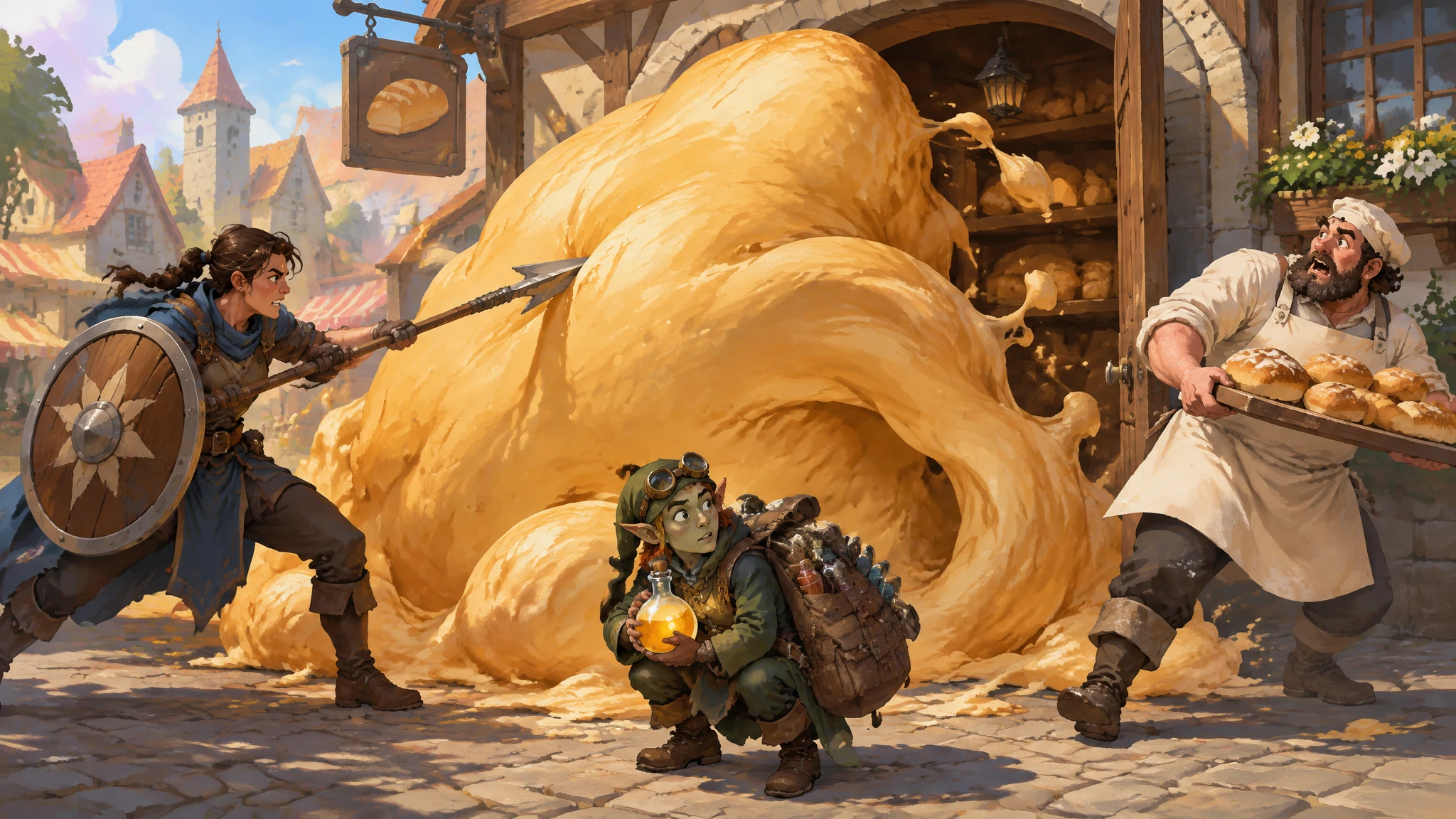
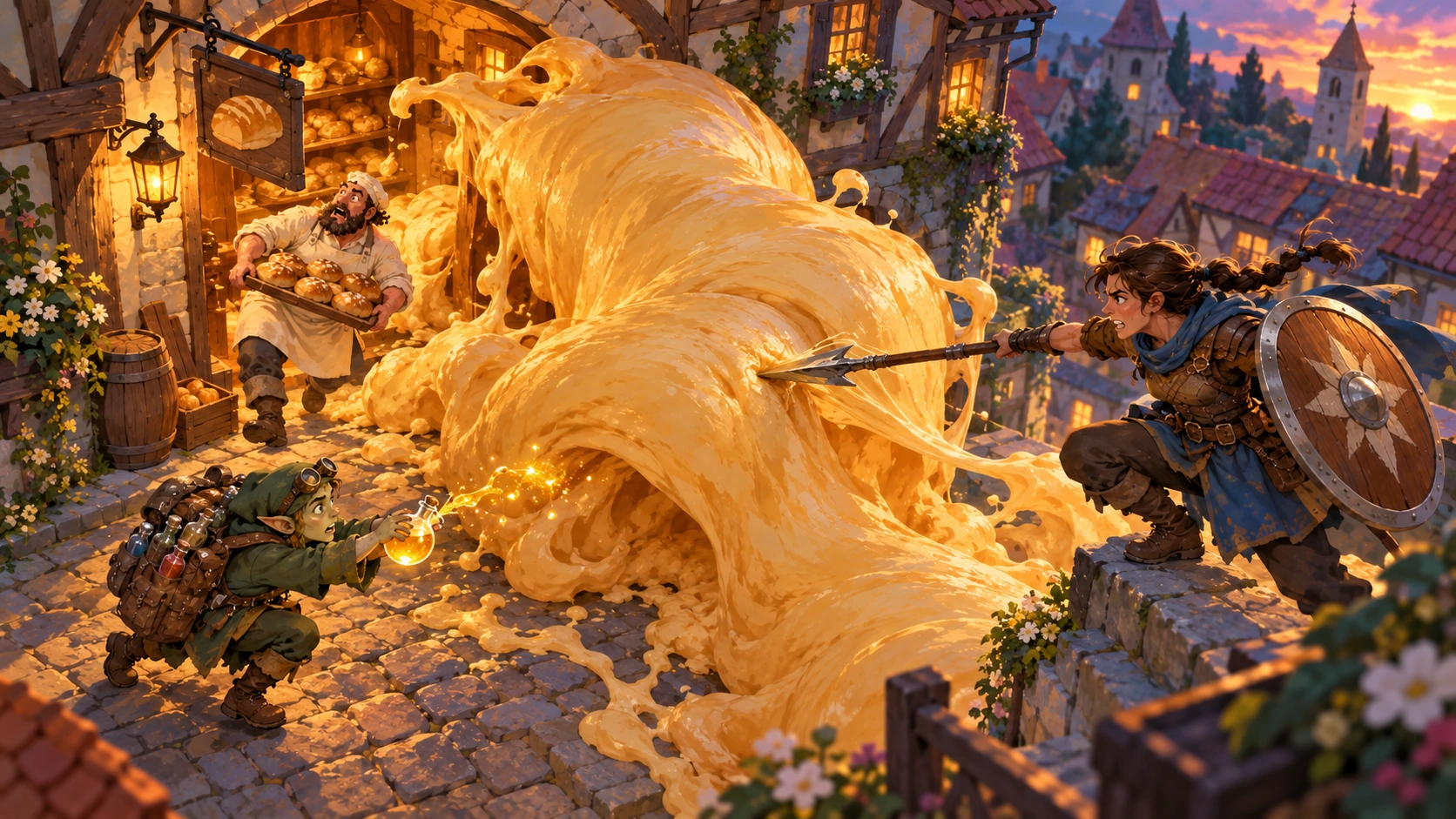
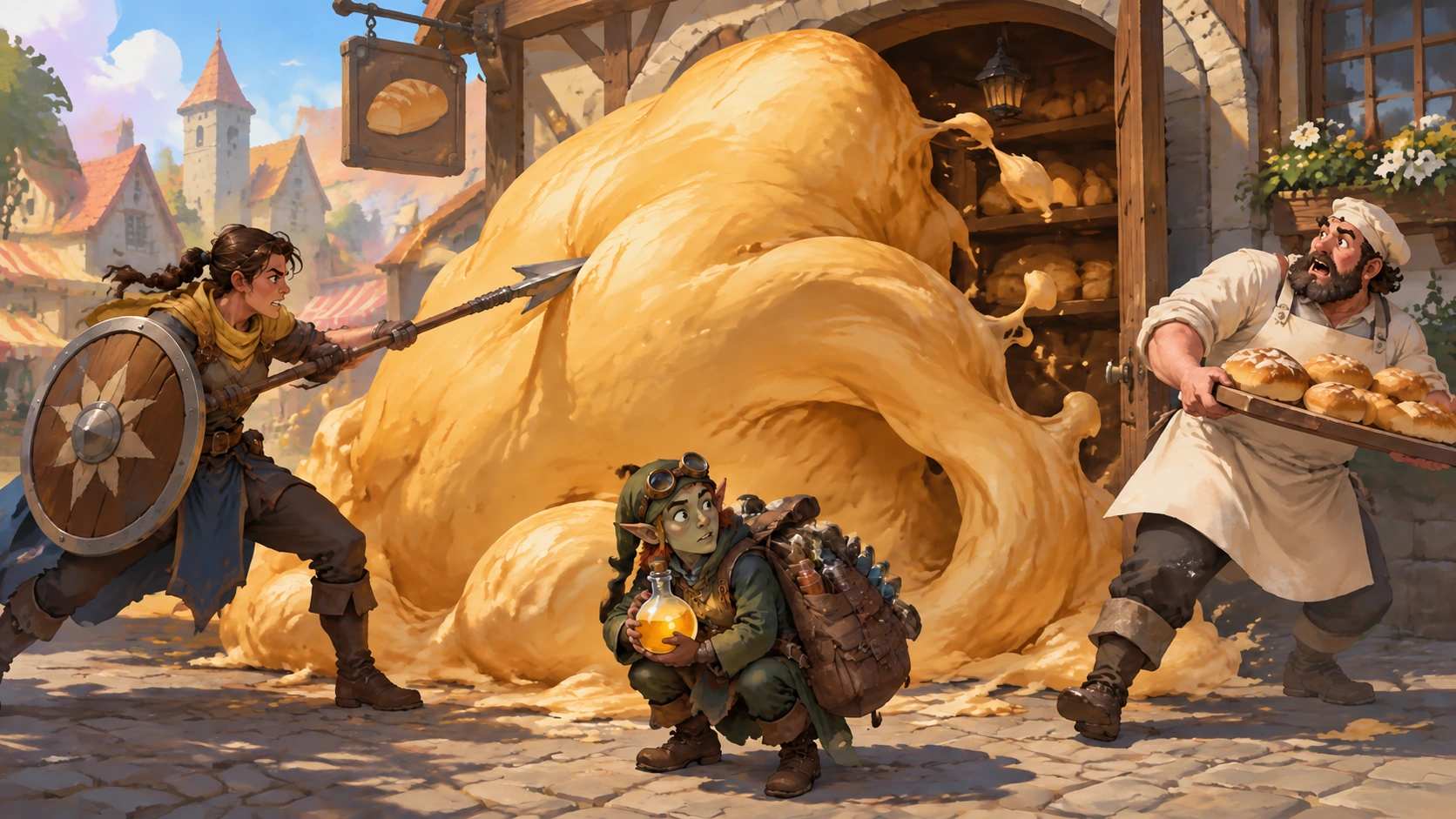
The illustrated alternatives below start from the same image. Reimagine changes the viewpoint and lighting; Refine changes Mara’s blue scarf to gold.
Original
Reimagine
Refine
These modes appear on generated artwork in profile editors, campaign covers, and Memories. Uploaded artwork may offer Upgrade instead. Batch generation has a separate editor.
For Scenes and Memories, you can change the selected Characters while refining. In a Memory, the original Scene stays fixed.
Give one clear piece of feedback
Change Mara’s scarf from blue to gold.
Generate the refinement, then compare the result with the version you liked. Check the whole image: a targeted request can still change other details.
Your current artwork stays selected until you choose Use this image on another version.
Spend the next credit on purpose
- Check the subject, cast, and references before generating.
- Describe the specific change instead of asking for “better”.
- Revisit saved versions before creating another.
- Upload artwork you already want to use when that makes more sense.